
Create a protection plan
Freeze chosen changes to an application or namespace for a time window, check that the protection is in force, and read the report.
This guide sets up a protection plan for a release window: audit first, then enforce.
You need: the Contributor role or higher on protection plans, and at least one application on the Applications page. Enforcing on a namespace scope needs the Owner role.
1. Open the form
Open Protection plans and choose Create Plan. Nothing is saved until you submit, so you can move between sections freely.
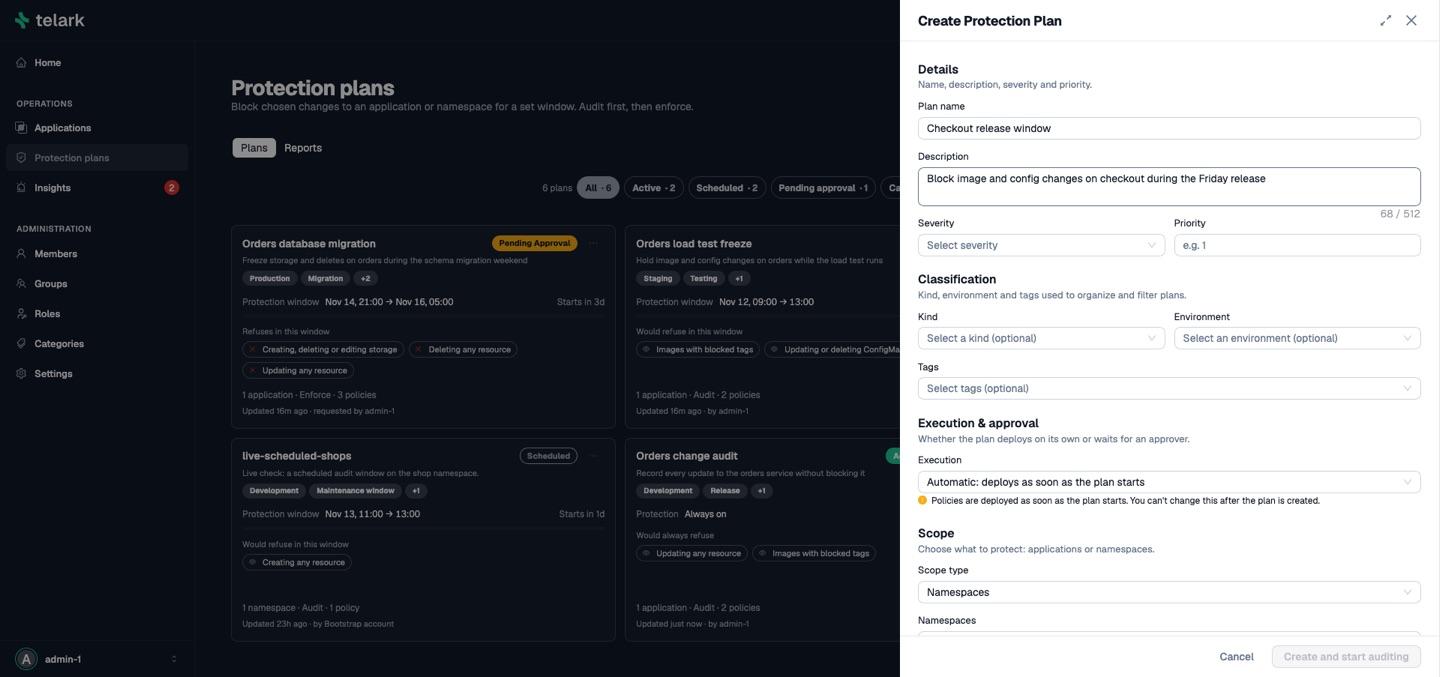
2. Fill in the details
| Field | What to enter |
|---|---|
| Name | Unique, ignoring case. Up to 64 characters, no {{ or }}. |
| Description | One line of context. It appears on the plan page and in reports. |
| Severity, priority | Labels for people (priority from −100 to 100). They do not change enforcement. |
| Kind, environment, tags | Optional, for filtering. The kinds are QA, Testing, Release and Maintenance window, plus any an admin adds. A plan in Production always requires approval. |
| Execution | Automatic deploys when the plan starts. Requires approval deploys nothing until another user approves. It cannot be changed after creation. |
3. Choose the scope
- Applications: pick one or more discovered applications. The plan covers their workloads in every namespace they span.
- Namespaces: pick one or more namespaces. The plan covers every resource in them. The release namespace and the excluded namespaces (by default
default,kube-system,kube-publicandkube-node-lease) cannot be targeted.
Optionally exclude kinds, or, for an application scope, individual resources.
4. Choose the policies and the mode
Pick the mode for the whole plan:
- Audit records what it would block and blocks nothing. Use it first.
- Enforce rejects violating requests at admission.
Then add one or more templates. The picker shows only the templates the scope supports; changing the scope type clears your choices.
| Shown as | Template | Blocks |
|---|---|---|
| Creating any resource | block-create | Creating any resource in scope |
| Updating any resource | block-update | Updating any resource in scope |
| Deleting any resource | block-delete | Deleting any resource in scope |
| Changing replica counts | block-replica-scaling | Changing replica counts on Deployments and StatefulSets (applications scope only) |
| Images with blocked tags | block-image-tags | Container images with the tags you list |
| Images matching blocked patterns | block-image-types | Container images matching the registry or name patterns you list |
| Creating, deleting or editing storage | block-storage-changes | Creating, changing or deleting PersistentVolumeClaims, and volume changes on workloads |
| Updating or deleting ConfigMaps & Secrets | block-config-secret-resource-changes | Updating or deleting ConfigMaps and Secrets |
| Changing config mounts & env sources | block-workload-config-mount-changes | Changing workload volume mounts and ConfigMap or Secret sources |
To audit some templates and enforce others, create two plans.
5. Set the schedule
- Time range: the plan activates at the start and terminates at the end, at most one controller tick (31 seconds by default) late.
- Repeating: pick the Days, the From and To times and a Time zone, for example every Sunday from 02:00 to 04:00. Times follow that zone's wall clock, daylight saving included, and a window that ends before it starts runs past midnight. The plan is active in each window and scheduled between them.
- Permanent: runs until you cancel it.
For a release window, pick Time range. To try it out, set a 15-minute window starting now.
Participants is informational. Roles decide who may approve, cancel or reactivate a plan.
6. Submit
Check the summary under This plan will, then choose the submit button, which names the result: Create and request approval, Create and schedule, Create and start auditing or Create and enforce now. Create and enforce now asks you to confirm first. You should see the plan in one of these phases:
| Phase | Meaning |
|---|---|
pending_approval | Waiting for approval. Nothing is deployed. |
scheduled | Approved or automatic, waiting for the start time, or a repeating plan between windows. |
active | Policies deployed. |
A plan that requires approval must be approved by an Owner who did not create or edit it. Approvers are notified in the dashboard and approve from the plan page.
7. Check that the protection is in force
Open the plan. While it is active:
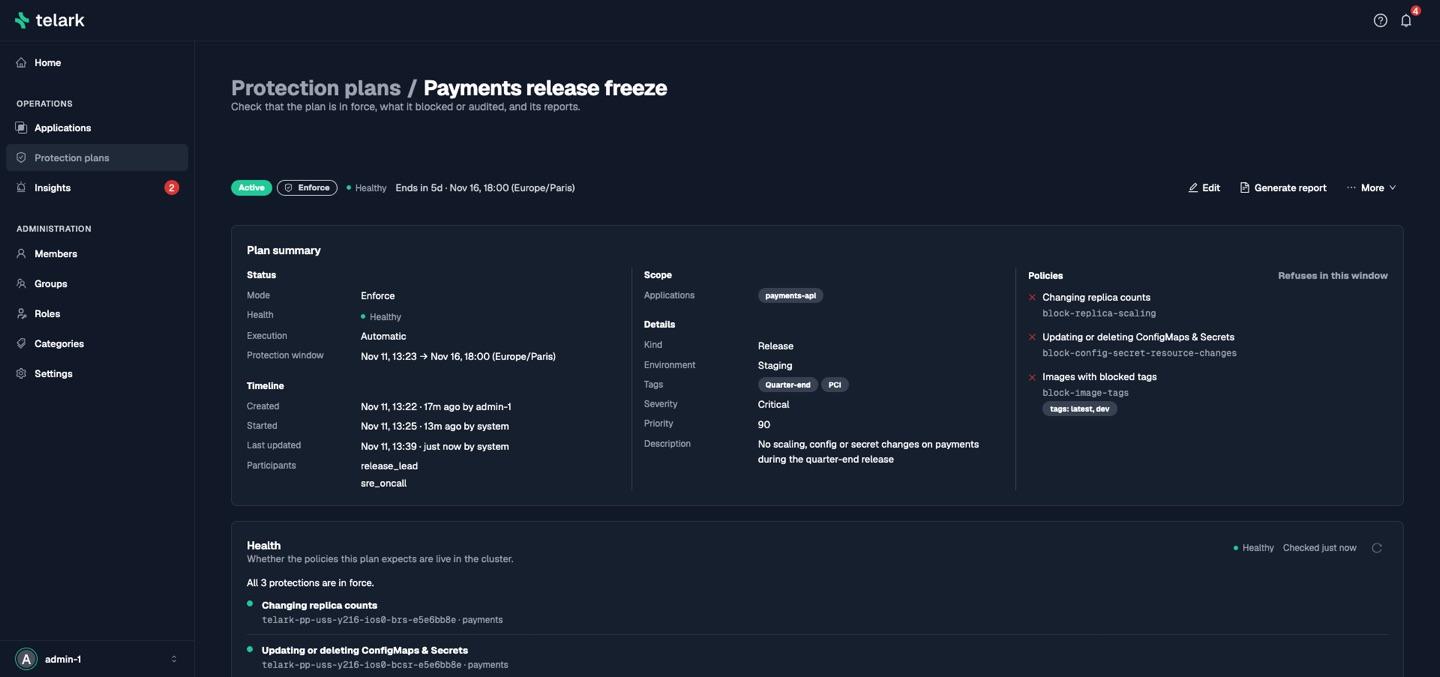
- Health should read Healthy within one tick: Telark found every expected Kyverno policy, ready and in the right mode. Drifted means a policy is missing or was edited; Telark redeploys it on the next tick. Degraded means a policy exists but is not ready yet; see Troubleshooting.
- Admission decisions lists every request the plan blocked or, in audit mode, would have blocked since it started, with who sent it. In audit mode the result reads Would block and the message "would be blocked".
You can also list the policies yourself:
kubectl get namespacedvalidatingpolicies -A -l telark.io/protection-plan=<plan-id>8. Switch to enforce
When the audit decisions match what you expect, edit the plan and change the mode to Enforce. A violating request now fails with the template's message, which names the plan and the Kubernetes user who sent the request, for example:
Resource deletion is blocked by protection plan "<plan name>". (requested by "<username>")9. Read the report
When the window ends the plan moves to terminated, Telark deletes its policies, and a final report appears under Reports (HTML, Markdown, JSON or CSV). You can also generate a report on demand while the plan runs. A repeating plan instead goes back to scheduled when each window ends: Telark removes its policies and captures a report for that window, and the next window deploys them again.
A finished plan still lists its admission decisions. Download the report if you need a record: deleting the plan deletes its reports, unless you select Keep its reports in the delete dialog.
Next
- Use Duplicate on a finished plan to reuse its settings for the next window.
- Roll back an application if a change got through before the plan started.
- Protection plans explains the lifecycle in depth.